Adding And Removing Users From the AutoHub Web App
Overview
This Knowledge base article is dedicated to informing existing AutoHub admins how to add and remove users to and from an account in the AutoHub web app. Users are added and removed in the users tab of the AutoHub web app.
User Classes
User:
Specifically for the In-Store Appraisal Product
This status is for the salesperson conducting in-store appraisals
This status should not be used for the service or online products
Can only see their own appraisals
Cannot finalize appraisals
Does not have access to service or online leads
Manager:
Can access and edit everything Users can
Can finalize appraisals
Can see and edit all users' appraisals
Can edit deductions on the appraisal
Can see in-store, online, and service appraisals
Cannot edit pricing strategy, offers settings, or deductions pricing for the dealership
Admin:
Can access and edit everything Managers and Users can
Can add and delete users
Can edit pricing strategy, offers settings, and deductions pricing for the dealership
Has access to group Analytics (if the Admin is given access to multiple dealerships in the group)
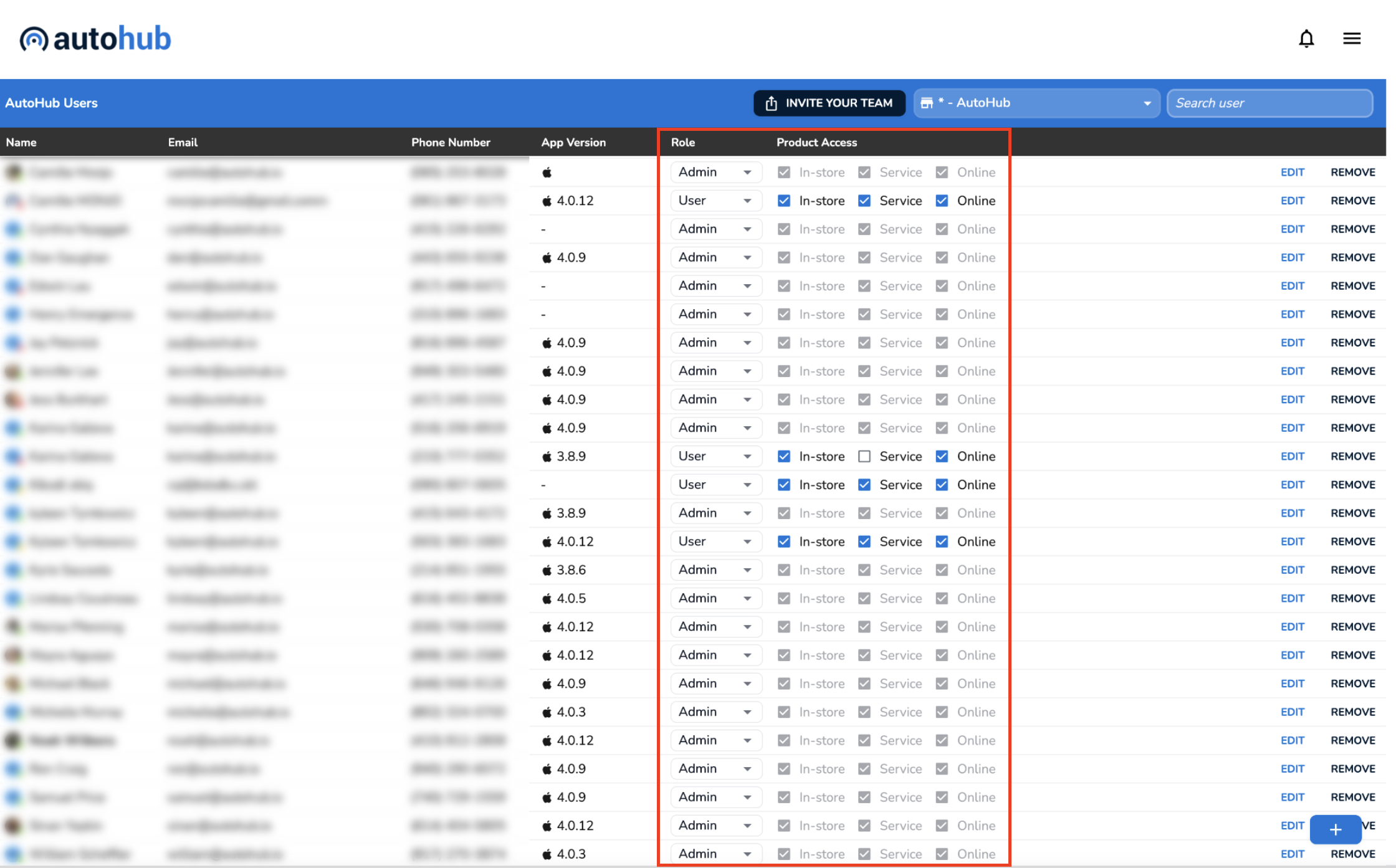
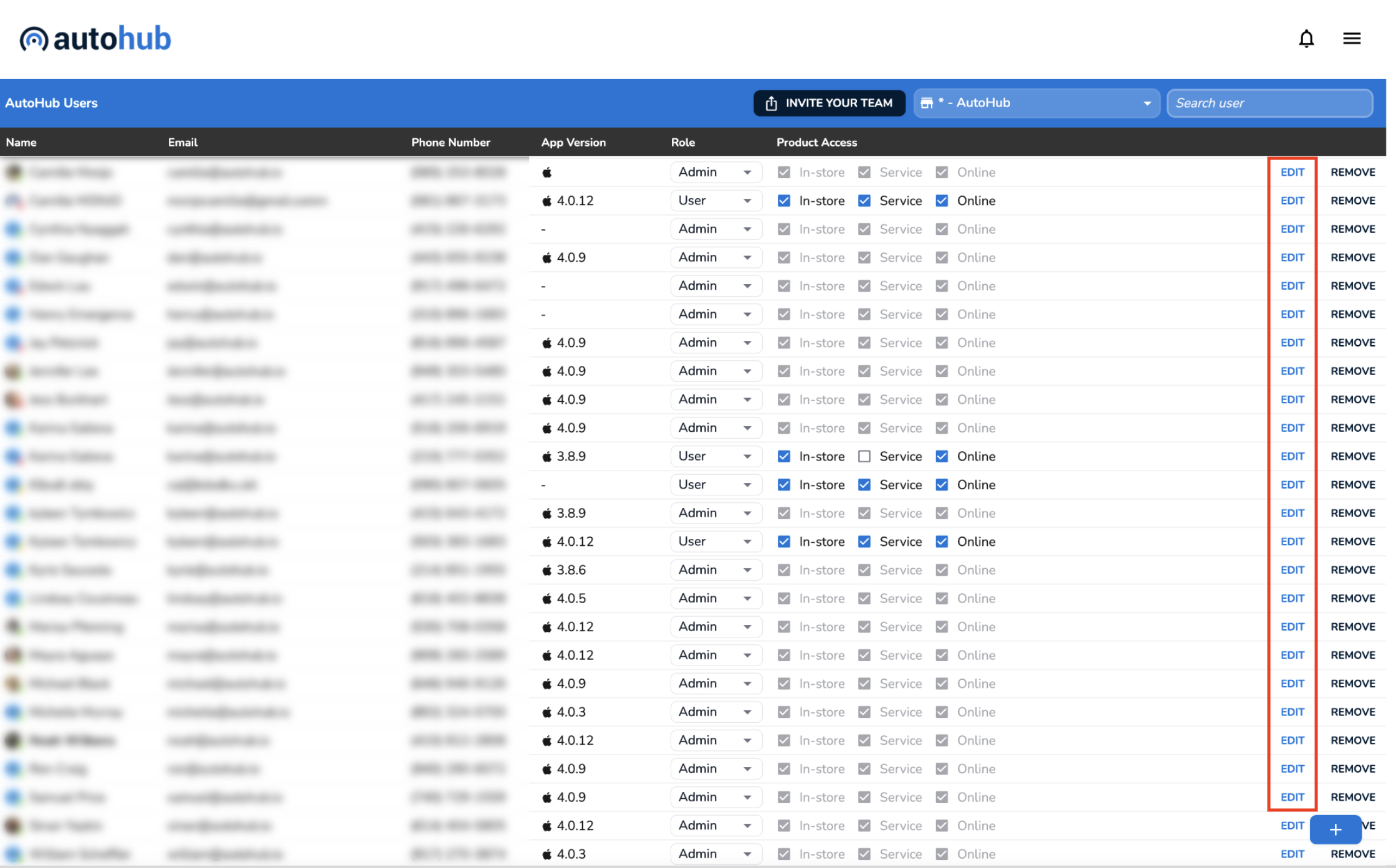
In the users tab of the AutoHub web app, the user class and product access can be changed by an admin. The user's role can be selected from the dropdown menu. By toggling the checkbox in the product access column, the admin can decide which types of appraisals team members can and cannot see.
Adding a User
Select the account in which to add a user
Click the "+" button in the bottom right corner (see screenshot above)
Enter the user's full name, mobile phone number, and work email. Then click done.
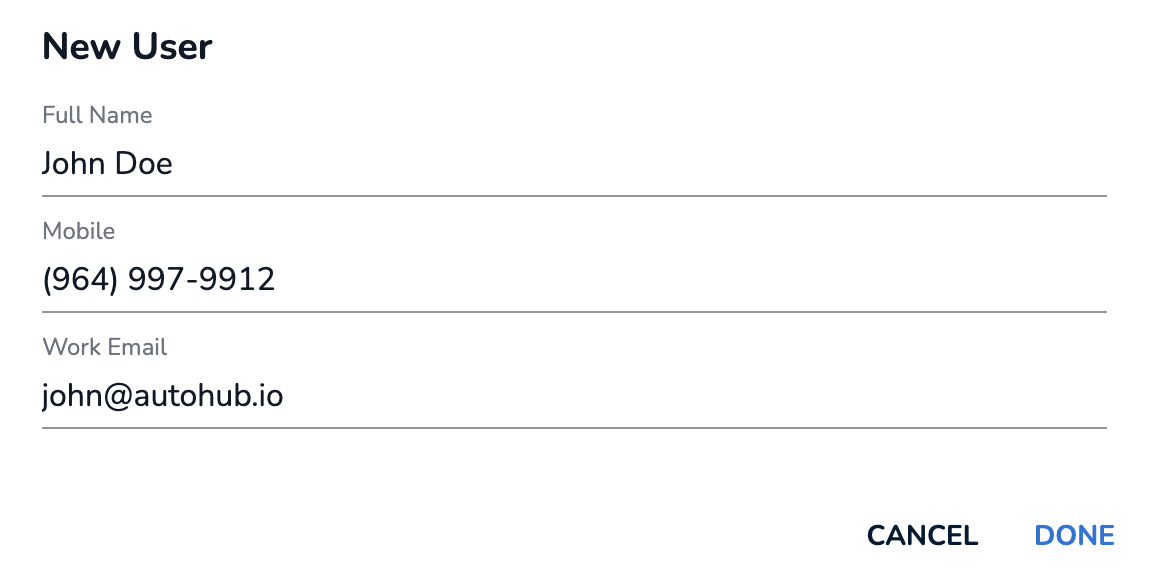
Note: The user will receive a confirmation message acknowledging that they have been added to an account. They will also receive a link to download the application to their mobile device.
Removing a User
Select the account in which to remove a user
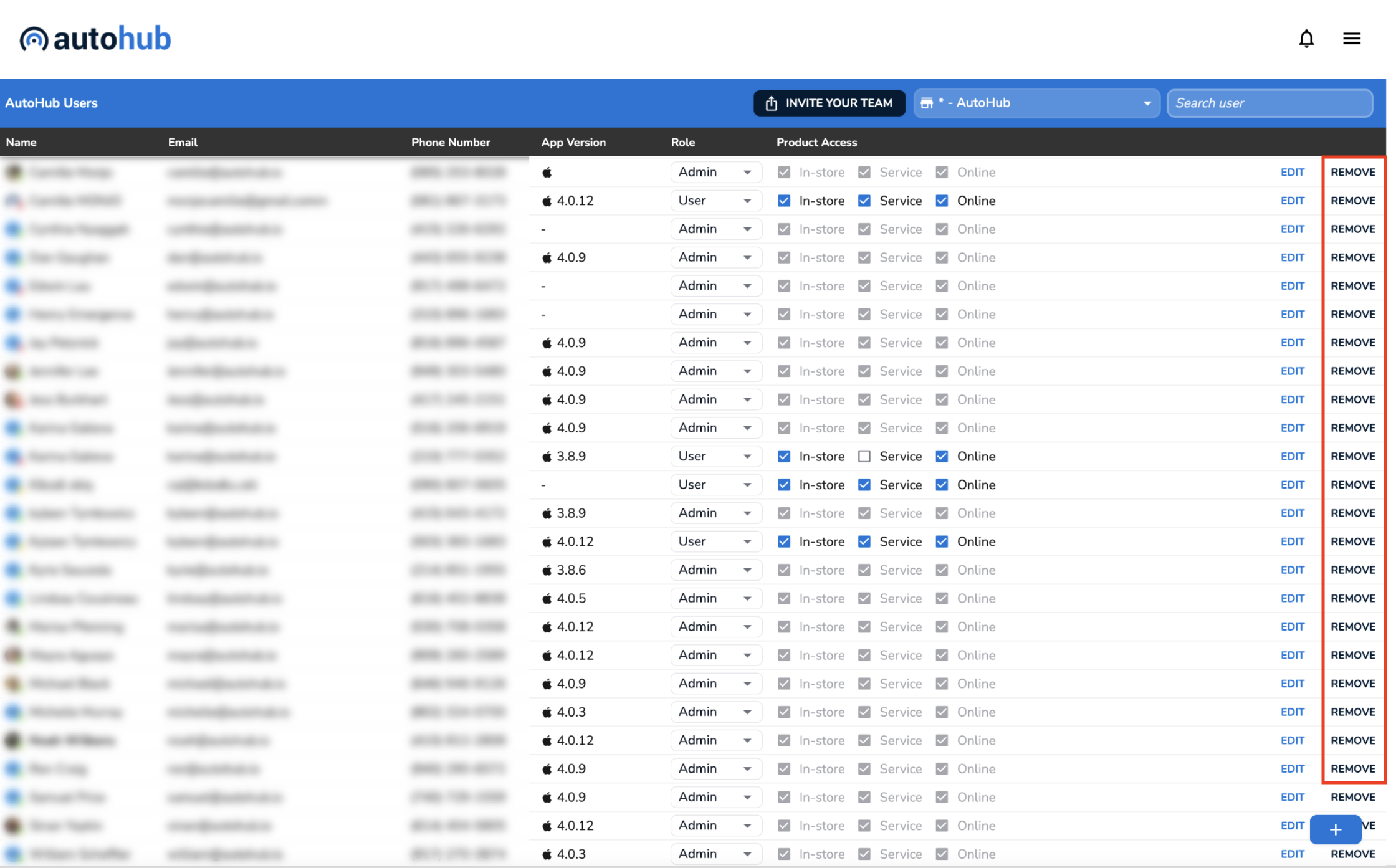
Locate the user you wish to remove and click "remove."
Confirm the removal of the user and click "OK."
Editing a User
Select the account that contains the user data you wish to edit.
Locate the user you wish to edit and click "edit."
Edit the data and click "done"